Tablets tips can transform a basic device into a powerful productivity machine. Whether someone uses their tablet for work, entertainment, or daily tasks, small adjustments make a big difference. Many users never explore the full potential of their tablets. They stick with default settings and miss features that could save hours each week.
This guide covers practical tablets tips that anyone can apply today. From optimizing performance to extending battery life, these strategies help users get more from their devices. The goal is simple: make the tablet work smarter, not harder.
Table of Contents
ToggleKey Takeaways
- Adjusting display settings and disabling animations can significantly improve your tablet’s speed and responsiveness.
- Extend battery life by using power-saving modes, turning off unused connectivity features, and limiting location services for non-essential apps.
- Master split-screen and slide-over views to multitask effectively and boost productivity on your tablet.
- Connect a Bluetooth keyboard and learn shortcuts to transform your tablet into a laptop alternative for serious work.
- Keep your tablet secure by enabling strong authentication, installing updates promptly, and downloading apps only from official stores.
- These tablets tips can make even older devices feel faster while protecting your personal information.
Optimize Your Tablet Settings for Better Performance
A tablet’s default settings rarely deliver the best performance. Taking a few minutes to adjust key options can speed up the device and improve responsiveness.
Adjust Display Settings
Screen brightness drains resources faster than most people realize. Enabling auto-brightness allows the tablet to adjust based on ambient light. This reduces strain on the processor and saves power. Users should also consider lowering the screen timeout to 30 seconds or one minute.
Animation effects look nice but slow things down. On Android tablets, developers options allow users to reduce or disable window animations. iPad users can enable “Reduce Motion” in accessibility settings. Both changes make the interface feel snappier.
Manage Background Apps
Apps running in the background consume memory and processing power. Regularly closing unused apps prevents slowdowns. Most tablets let users view active apps by swiping up from the bottom of the screen.
Background app refresh is another setting worth reviewing. This feature lets apps update content when not in use. Disabling it for non-essential apps frees up resources. Users can keep it enabled for email and messaging apps that need real-time updates.
Clear Cache and Storage
Cached data builds up over time and can affect performance. Clearing the cache removes temporary files that apps no longer need. Android users find this option in Settings under Storage. iPad users may need to delete and reinstall apps to clear their cache.
Storage space also impacts speed. A tablet with less than 10% free space often runs slowly. Moving photos and videos to cloud storage or an external drive helps maintain optimal performance. These tablets tips alone can make an older device feel new again.
Extend Battery Life With Smart Habits
Battery anxiety is real. Nobody wants their tablet dying during an important video call or halfway through a movie. Smart habits extend battery life significantly.
Use Power-Saving Modes
Every tablet includes some form of power-saving mode. This feature limits background activity, reduces screen brightness, and restricts certain functions. Enabling it during low-battery situations can add hours of use.
Some users keep power-saving mode on all the time. The trade-off is slightly reduced performance, but the extended battery life is worth it for many people. Android tablets often offer multiple power-saving levels. Users can choose between moderate savings and maximum battery extension.
Control Connectivity Features
Wi-Fi, Bluetooth, and location services all drain battery. Turning off features that aren’t in use makes a noticeable difference. Someone reading an ebook doesn’t need Bluetooth active. A user watching downloaded videos can switch to airplane mode.
Location services deserve special attention. Many apps request location access even when they don’t need it. Reviewing app permissions and limiting location access to essential apps extends battery life and protects privacy.
Monitor App Battery Usage
Most tablets show which apps consume the most battery. Checking this data reveals surprising culprits. Social media apps and games often top the list. Users can limit time in these apps or find lighter alternatives.
Push notifications also affect battery life. Each notification wakes the screen and activates the processor briefly. Disabling notifications for less important apps reduces these interruptions. These tablets tips help users stay powered up throughout the day.
Master Multitasking and Productivity Features
Tablets excel at multitasking when users know how to leverage built-in features. Learning these tools transforms casual browsing into serious productivity.
Split-Screen and Slide-Over Views
iPads offer Split View and Slide Over for running multiple apps simultaneously. Android tablets have similar split-screen capabilities. Users can take notes while watching a video or reference a document while writing an email.
To activate split-screen on most tablets, users drag an app from the dock or recent apps list to one side of the screen. The second app fills the remaining space. Adjusting the divider changes how much screen each app receives.
Slide Over on iPad creates a floating window that hovers above the main app. This works well for quick tasks like replying to messages without leaving the current workflow.
Keyboard Shortcuts and External Accessories
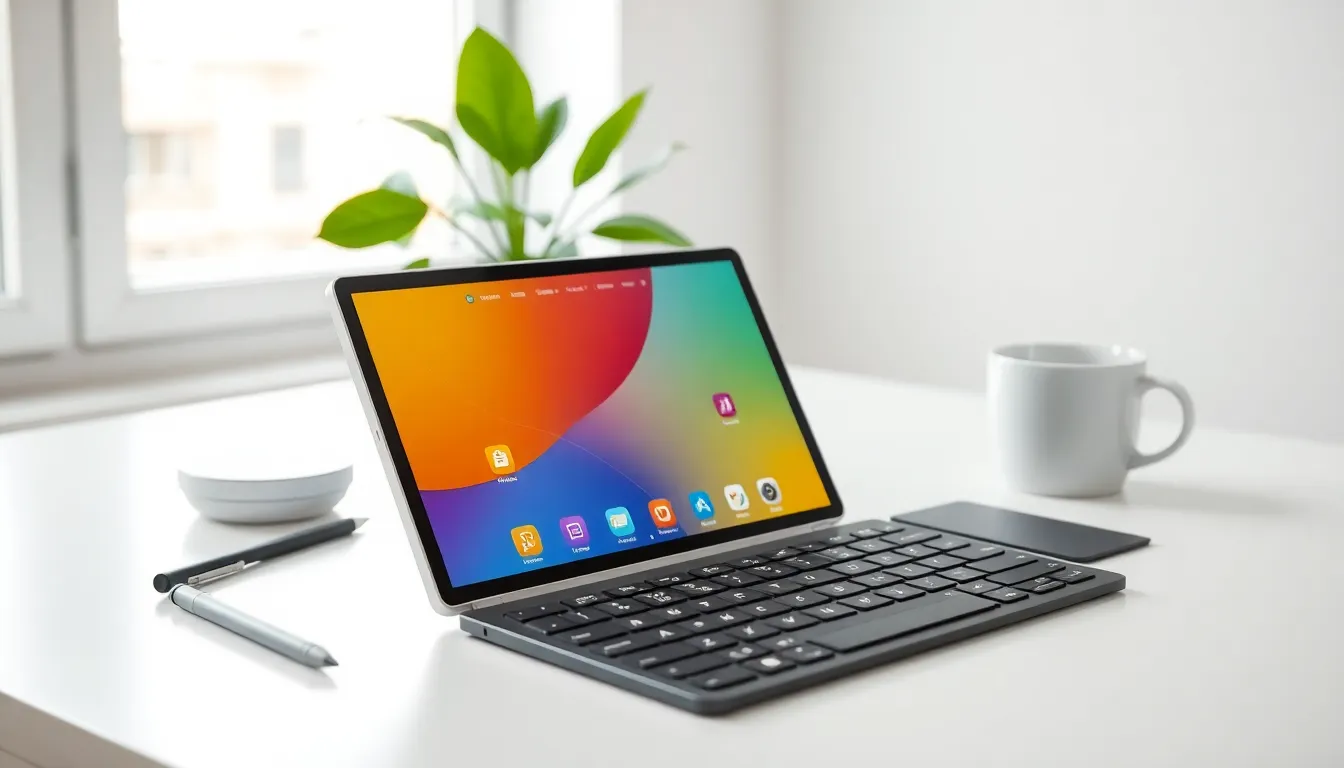
Connecting a physical keyboard unlocks new possibilities. Bluetooth keyboards turn tablets into laptop alternatives. Most tablets support standard keyboard shortcuts like copy, paste, and undo. Learning these shortcuts speeds up common tasks.
iPad users can press and hold the Command key to see available shortcuts in any app. Android tablets vary by manufacturer, but most support similar functionality. A stylus adds another layer of capability, especially for note-taking and creative work.
Use Productivity Apps Effectively
The right apps make all the difference. Note-taking apps like Notability or OneNote sync across devices. Task managers like Todoist or Things keep projects organized. Cloud storage apps ensure files are always accessible.
Widget support on modern tablets displays information at a glance. Users can add calendar widgets, weather updates, and task lists to their home screen. These tablets tips turn a tablet into a complete productivity hub.
Keep Your Tablet Secure and Up to Date
Security often gets overlooked until something goes wrong. Protecting a tablet takes minimal effort but prevents major headaches.
Enable Strong Authentication
A six-digit passcode provides better protection than a four-digit one. Biometric options like Face ID or fingerprint scanning offer convenience without sacrificing security. Users should enable these features if their tablet supports them.
Two-factor authentication adds another layer of protection for important accounts. Even if someone obtains a password, they can’t access the account without the second verification step. Most email providers, banks, and social media platforms offer this option.
Install Updates Promptly
Software updates do more than add new features. They patch security vulnerabilities that hackers exploit. Delaying updates leaves the device exposed to known threats.
Enabling automatic updates ensures the tablet stays current. Users who prefer manual control should check for updates weekly. App updates matter too, outdated apps can create security gaps.
Practice Safe Browsing and App Installation
Downloading apps only from official stores reduces malware risk. The App Store and Google Play screen submissions for harmful code. Third-party sources don’t offer the same protection.
Public Wi-Fi networks pose risks. Using a VPN encrypts data and protects against snooping. Users should avoid accessing sensitive accounts on unsecured networks. Following these tablets tips keeps personal information safe.