Tablets for beginners can feel like a big decision, but they don’t have to be overwhelming. These lightweight devices sit between smartphones and laptops, offering a larger screen without the bulk of a full computer. Whether someone wants to browse the web, read e-books, video chat with family, or stream their favorite shows, a tablet can handle it all.
This guide breaks down everything a first-time buyer needs to know. It covers what tablets actually do, which features matter most, and how different operating systems compare. By the end, anyone new to tablets will feel confident picking the right device and setting it up without frustration.
Table of Contents
ToggleKey Takeaways
- Tablets for beginners offer an intuitive, lightweight alternative to laptops with 8–12 hours of battery life and touchscreen simplicity.
- Look for at least 32GB storage, Full HD display resolution, and 3–4GB RAM for smooth everyday performance.
- iPadOS provides a polished experience, Android offers flexibility and budget options, and Fire OS excels for Amazon service users.
- Entry-level tablets start around $100–$200, making them accessible for first-time buyers testing the technology.
- Set up your tablet by connecting to Wi-Fi, downloading essential apps gradually, and customizing text size and display settings for comfort.
- Secure your device with a passcode or biometric lock and keep automatic updates enabled for ongoing protection.
What Is a Tablet and Why Consider One?
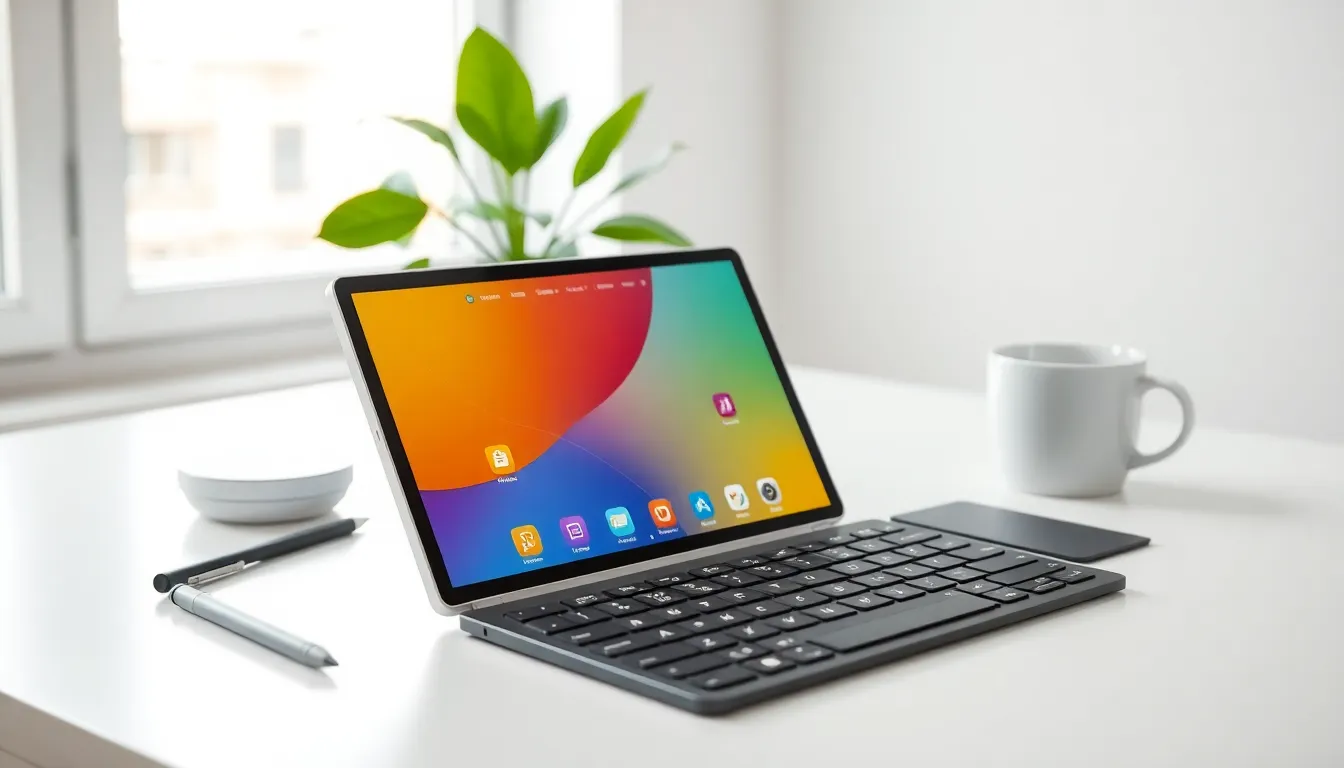
A tablet is a portable touchscreen device that runs apps, connects to the internet, and handles many tasks that laptops and smartphones do. Most tablets weigh under two pounds and feature screens between 7 and 13 inches. They don’t have physical keyboards attached, though users can add one if they prefer.
So why should beginners consider a tablet? Several reasons stand out:
- Portability: Tablets slip easily into bags and backpacks. They’re perfect for travel, commuting, or moving between rooms at home.
- Ease of use: Touchscreens feel intuitive. Tapping, swiping, and pinching to zoom come naturally to most people.
- Versatility: A single tablet can serve as an e-reader, streaming device, web browser, and communication tool.
- Longer battery life: Many tablets for beginners last 8 to 12 hours on a single charge, much longer than most laptops.
Tablets also cost less than laptops in many cases. Entry-level models start around $100 to $200, making them accessible for people testing the waters. For seniors, students, or anyone who finds laptops too complicated, tablets offer a gentler learning curve.
They won’t replace a computer for heavy work like video editing or complex spreadsheets. But for everyday tasks? Tablets hit a sweet spot between capability and simplicity.
Key Features to Look for in Your First Tablet
Choosing a tablet means weighing several features. Beginners don’t need the most powerful or expensive option, they need the right fit for their habits.
Screen Size and Display Quality
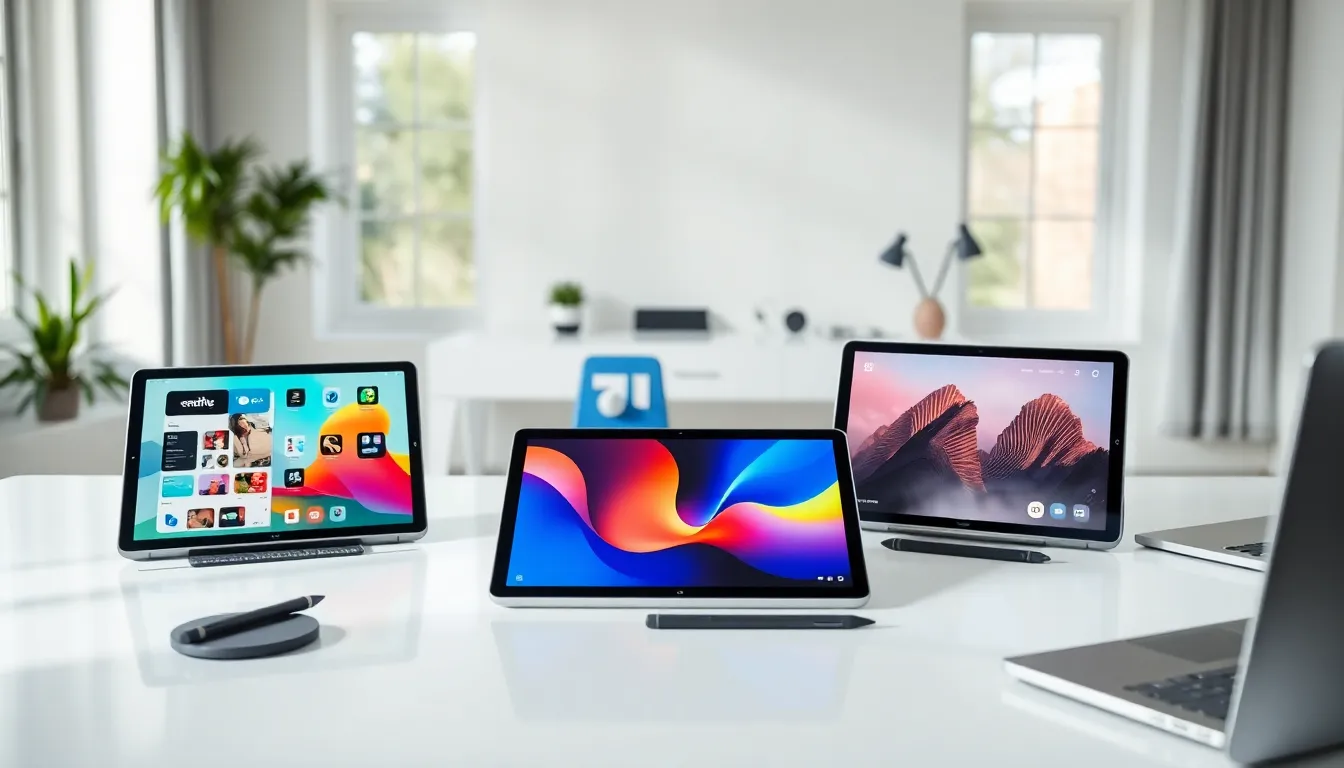
Screen size affects how comfortable reading, watching videos, and typing feel. Tablets typically range from 7 to 13 inches. An 8-inch tablet works well for portability and casual use. A 10- to 11-inch screen suits people who want more space for videos or light productivity.
Display resolution matters too. Look for at least 1920 x 1080 pixels (Full HD) for sharp text and clear images. Budget tablets sometimes cut corners here, so check the specs.
Storage Capacity
Storage determines how many apps, photos, and videos the tablet can hold. Most tablets for beginners offer 32GB to 128GB of internal storage. For basic use, web browsing, email, and streaming, 32GB works fine since most content lives in the cloud. Anyone planning to download movies or games should aim for 64GB or higher.
Some tablets include microSD card slots for expandable storage. This feature adds flexibility without raising the price tag.
Battery Life
Battery life varies widely. Budget tablets may last 6 to 8 hours, while mid-range and premium models often deliver 10 to 12 hours. Consider daily habits: Will the tablet stay home near a charger, or travel frequently?
Processor and RAM
These determine speed and responsiveness. For beginners doing basic tasks, a mid-tier processor and 3GB to 4GB of RAM provide smooth performance. Tablets with less than 2GB of RAM may struggle with multitasking.
Connectivity
Most tablets connect to the internet via Wi-Fi. Some models offer cellular connectivity (LTE or 5G) for using mobile data on the go. Wi-Fi-only models cost less and work perfectly for people who stay near home networks or use phone hotspots.
Popular Tablet Operating Systems Explained
Three main operating systems power today’s tablets. Each has strengths that appeal to different users.
iPadOS (Apple iPad)
Apple’s iPadOS runs exclusively on iPads. It offers a polished, user-friendly experience with strong security and regular software updates. The App Store provides a huge selection of high-quality apps optimized for tablets.
iPads work especially well for people already using iPhones or Macs. Features like AirDrop, iMessage, and iCloud sync seamlessly across Apple devices. But, iPads tend to cost more than Android alternatives, and the entry-level iPad starts around $329.
For beginners who value simplicity and don’t mind paying a premium, iPadOS delivers a seamless process.
Android
Android tablets come from many manufacturers, Samsung, Lenovo, Amazon, and others. This variety means more price points and form factors. Budget-friendly tablets for beginners often run Android.
Android offers more customization than iPadOS. Users can change default apps, add widgets, and tweak settings extensively. The Google Play Store contains millions of apps, though some aren’t optimized for larger tablet screens.
Samsung’s Galaxy Tab series represents the premium end of Android tablets, while Amazon’s Fire tablets occupy the budget space.
Fire OS (Amazon)
Amazon’s Fire tablets run Fire OS, a modified version of Android. These devices prioritize Amazon services like Prime Video, Kindle, and Alexa. They’re among the cheapest tablets available, with prices starting under $100.
Fire tablets work great for streaming, reading, and basic browsing. But, they lack Google Play Store access by default, users must rely on Amazon’s Appstore, which has fewer apps. For beginners focused on media consumption who already subscribe to Amazon services, Fire tablets offer excellent value.
Tips for Setting Up and Using Your New Tablet
Getting started with a new tablet takes just a few steps. These tips help beginners hit the ground running.
Initial Setup
Charge the tablet fully before turning it on. Follow the on-screen prompts to select language, connect to Wi-Fi, and create or sign into an account (Apple ID, Google account, or Amazon account depending on the tablet).
Most tablets for beginners walk users through basic settings during setup. Take time to read each screen rather than rushing through.
Essential Apps to Download
Start with apps that match daily needs:
- Web browser: Chrome, Safari, or Firefox
- Email: Gmail, Outlook, or the built-in mail app
- Video calling: Zoom, FaceTime, or Google Meet
- Streaming: Netflix, YouTube, or Hulu
- Reading: Kindle app or Apple Books
Avoid downloading too many apps at once. Add them gradually as needs arise.
Adjusting Settings for Comfort
Explore the Settings menu to customize the experience:
- Increase text size for easier reading
- Enable dark mode to reduce eye strain
- Adjust screen brightness or turn on auto-brightness
- Set up Do Not Disturb schedules for uninterrupted focus
Learning Touch Gestures
Master these basic gestures:
- Tap: Select items or open apps
- Swipe: Scroll through pages or switch between apps
- Pinch: Zoom in or out on photos and web pages
- Long press: Access additional options or menus
Practice makes these movements feel natural within days.
Keeping the Tablet Secure
Set up a passcode, PIN, or biometric lock (fingerprint or face recognition). Enable automatic software updates to receive security patches. Be cautious about downloading apps from unknown sources, stick to official app stores.